
10 Google Maps Tricks That Make Travel Easier
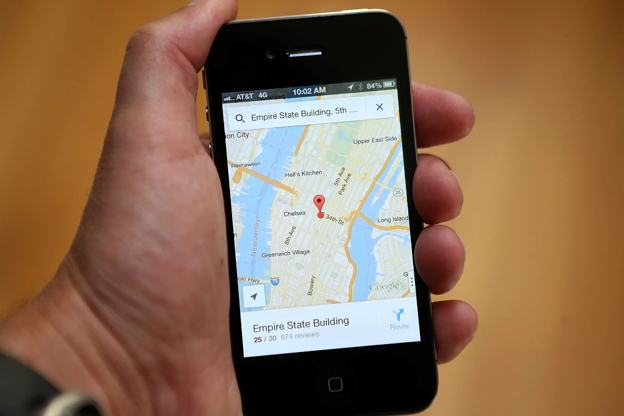
Menus and names shift a little between phones and app versions, so if something looks different on your screen, a quick look through settings will usually find it.
1. Download Maps for Offline Use
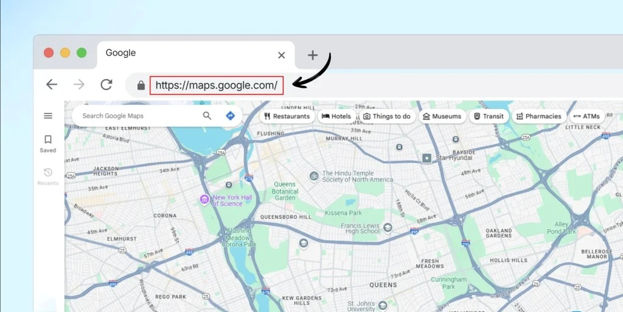
Patchy signal in the hills, a roaming-free trip abroad, or a basement car park, offline maps cover all of them. Search for a place or area, tap its name, and look for the download option. The app saves that region so navigation still works without data. Do this on Wi-Fi before you leave, since larger areas take up real storage. It's the single most useful habit for anyone who travels.
2. Add Multiple Stops to One Route
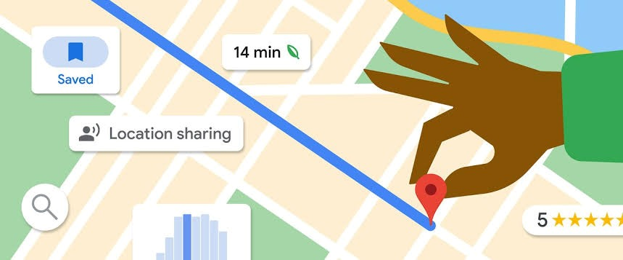
Planning a day with a petrol stop, a friend's house and then the restaurant? Enter your destination, tap the three-dot menu, and choose to add a stop. You can usually line up several and drag them into a better order. The app then recalculates the whole journey instead of making you restart at each point. It's brilliant for errands, road trips and airport pickups.
3. Skip Tolls, Highways or Ferries
Fastest isn't always best, especially if you'd rather save money or avoid a nerve-racking flyover. Before starting a drive, open the route options and switch on the settings to avoid tolls, highways or ferries. Expect the route to change, and compare the estimated time against your patience. Some drivers keep these on permanently, while others toggle them for particular trips. It's a small tweak that can change the feel of a whole journey.
4. Share Your Live Location and ETA
"Where are you now?" is the most common text during any trip. Instead of replying, share your live location with a trusted person for a set time, or share your trip progress while navigating. They can watch your arrival time update without bothering you. It's also a quiet safety net when you're travelling alone or coming home late. Just remember to stop sharing once you've arrived.
5. Save Places in Custom Lists
Everyone has a mess of screenshots, notes and half-remembered recommendations. Maps lets you save places into lists, such as "Goa cafes," "Weekend trips" or "Dentists to try." Tap a place, hit save, and choose or create a list. Later, those spots appear on your map, so you can see what's nearby when you're hungry in an unfamiliar neighbourhood. You can often share a list with friends too, which makes group planning less chaotic.
6. Check How Busy a Place Is
Nobody enjoys queueing outside a packed restaurant or wandering through a crowded market. Open a place's listing and scroll down to see popular times, plus live busyness when it's available. You can often spot the quieter hours and plan around them. This works well for malls, cafes, temples, museums and petrol stations. Treat the information as a helpful guide rather than a promise, since crowds can surprise everyone.
7. Save Where You Parked
Forgetting where you left the car is oddly universal, especially in big malls and airports. When you arrive, tap the blue dot and choose the option to set a parking location. Later, you can pull it up and navigate back on foot. Some versions even let you add notes, like the level or row number. It takes about three seconds and saves a lot of wandering and muttering.
8. Try Live View for Walking Directions
Walking in a new city, staring at an arrow that spins uselessly, is a rite of passage. Live View overlays arrows and street names on your camera view, so you can see which way to turn. It's available in many cities and works best when you hold your phone up in an open area. Don't walk while staring at the screen, though, and look around often. Use it for the confusing moment at the junction, then put the phone away.
9. Measure Distance Between Two Points
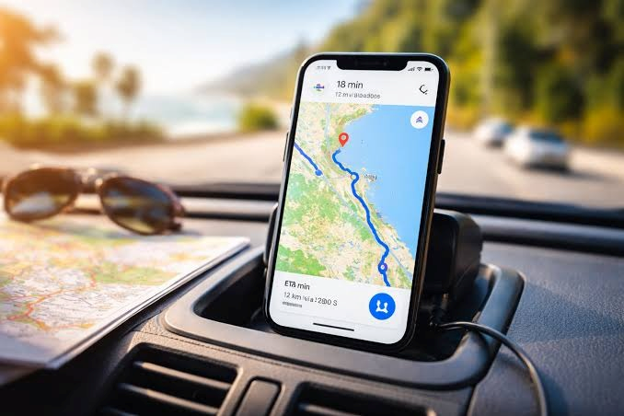
Sometimes you don't need directions, only a rough sense of how far things are. Press and hold on the map to drop a pin, then tap its name and choose the option to measure distance. Add another point, and the app shows the straight-line distance between them. It's handy for judging how far a hotel is from the beach, or whether a walk is realistic. Remember it measures straight lines, not the roads you'd actually travel.
10. Set a Time to Leave or Arrive
Instead of guessing, tell Maps when you need to reach somewhere. After entering your destination, open the options and set a departure or arrival time. The app uses typical traffic patterns to estimate how long the trip should take at that hour. It's useful for catching trains, reaching the office for a meeting or avoiding rush-hour traps. Treat it as an informed estimate, and add a buffer for anything important.
Habits Worth Picking Up
Keep the app updated, since Google tweaks things all the time and a new version often fixes odd glitches. Have a quick look at your privacy settings too, because it's worth deciding for yourself how much location history you want stored or shared. On long drives, a power bank is a lifesaver, as navigation eats battery faster than you'd expect. And don't switch your brain off completely. Road signs, local advice and the weather still matter, and sometimes the app is simply wrong. Treat it as a helpful co-pilot, not the one in charge.
Final Thoughts
Nobody needs to memorise all ten tricks. Try two or three on your next trip, maybe offline maps, a saved list and the parking pin, and see how they feel. The rest can wait until those become second nature. It's funny how a few small habits turn a plain navigation app into something you actually enjoy using. Happy travels, and may you never hear "recalculating" at the worst possible moment.
Frequently Asked Questions
1. Can Google Maps work without internet?
Yes, if you download the area for offline use beforehand. You can navigate and search within that area, though some live features like real-time traffic won't be available.
2. How do I add multiple stops on Google Maps?
Enter your destination, tap the menu with three dots, and choose to add a stop. You can add several and rearrange them.
3. How can I share my location safely?
Use the location sharing option and select a trusted contact and a time limit. Stop sharing when you no longer need it.
4. How do I find the quietest time to visit a place?
Open the place's listing and check the popular times section. It shows typical busy hours and, in many cases, live crowd levels.
5. Does Google Maps drain a lot of battery?
Navigation uses the screen, GPS and data, so it can drain battery quickly. Carry a power bank or plug in your phone during long trips.
Latest Posts