
Hidden Android Settings That Make Your Phone Faster Overnight
Before spending money on a new device or installing a questionable phone-cleaning app, it is worth exploring the settings already available on your smartphone. Several Android features can help reduce unnecessary background activity, improve the perceived speed of animations, and free up valuable storage space.
The idea of making an Android phone faster overnight does not mean every device can suddenly perform like a brand-new flagship. Actual improvements depend on your phone's hardware, available storage, Android version, battery condition, and the applications you use. However, a few carefully chosen adjustments can make everyday tasks feel noticeably smoother. The best part is that most of these changes take only a few minutes, require no additional downloads, and can be reversed whenever necessary. Here are the hidden Android settings worth checking if you want a faster, more responsive smartphone.
1. Reduce Animation Speed Through Developer Options
One of the most effective ways to make an Android phone feel faster is to adjust its animation settings. Android uses visual transitions when opening applications, switching between screens, and returning to the home screen. These animations make the interface look polished, but reducing their duration can make interactions feel more immediate, particularly on older devices. The setting is available through Developer Options, a menu intended primarily for advanced users that can be enabled on most Android phones.
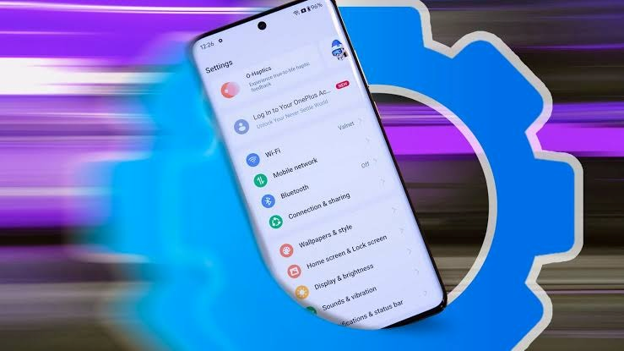
To access it, open Settings, navigate to About Phone, and locate Build Number. Tap Build Number seven times, entering your PIN if prompted, until you see a message confirming that Developer Options are enabled. On some devices, the location or wording differs slightly. Return to Settings, open Developer Options, and find Window Animation Scale, Transition Animation Scale, and Animator Duration Scale. Change each setting from 1x to 0.5x for quicker transitions, or select Animation Off if you prefer minimal visual effects. Your phone's processor will not become more powerful, but the interface may feel significantly snappier. Avoid changing unrelated developer settings unless you understand their purpose.
2. Free Up Storage Space to Reduce Lag
Low storage is a common reason an Android phone becomes frustrating to use. When the internal storage is nearly full, the device has less room for temporary files, application updates, downloads, and other routine operations. You may notice slower app launches, difficulties installing updates, or warnings that storage space is running out. Although freeing storage does not guarantee a performance improvement on every device, removing unnecessary files can resolve problems associated with critically low space and make everyday phone management easier.
Open Settings and look for Storage to review which categories occupy the most space. Delete unwanted downloads, remove duplicate photos, uninstall applications you no longer use, and move important media to a trusted backup service if appropriate. Messaging applications can also accumulate large amounts of forwarded videos, documents, and images. Review their storage-management tools before deleting anything important. Avoid clearing application data indiscriminately because it may remove saved settings, downloaded content, or locally stored information. Aim to maintain a reasonable amount of free storage rather than filling the device to its maximum capacity. A little digital housekeeping can make a bigger difference than installing another supposed speed-booster app.
3. Reduce Home Screen Clutter and Unnecessary Widgets
Your home screen can influence how responsive your phone feels, especially if it relies on a resource-intensive launcher, animated wallpapers, or numerous frequently updating widgets. Weather panels, news feeds, and other widgets may refresh information in the background, depending on their configuration. On entry-level smartphones, simplifying the interface can reduce unnecessary activity and make navigation feel less cluttered.
Try removing widgets you rarely use, switching to a static wallpaper, and keeping only essential shortcuts on your home screen. If you use a third-party launcher, check whether it offers lightweight layouts and fewer visual effects. You do not need to eliminate every widget or customise your phone extensively to benefit from these changes. Start with the features that refresh frequently or noticeably affect responsiveness. The aim is to create a clean, practical interface that makes frequently used applications easy to access without adding unnecessary complexity.
4. Update Android and Restart Your Phone Regularly
Sometimes, the simplest solutions are the most effective. Restarting your smartphone can resolve temporary software glitches, stop misbehaving processes, and restore normal performance when an application has become unresponsive. Software updates can also introduce bug fixes, security improvements, and performance optimisations. However, an update does not guarantee that every phone will become faster, and some updates may temporarily increase background activity while the device completes setup tasks.
Check Settings for available system and Google Play system updates, and install updates from trusted sources when appropriate. Back up important information before major software upgrades and ensure your phone has sufficient battery power. Restart the device if you notice unusual lag, overheating, or unexpected application behaviour. If the phone remains consistently slow despite these adjustments, investigate other causes, including failing hardware, battery deterioration, incompatible applications, or insufficient memory. Persistent performance problems may require professional diagnosis rather than additional setting changes.
Conclusion
You do not necessarily need a new smartphone to enjoy a smoother Android experience. Adjusting animation scales, freeing up storage, managing background activity, clearing selected app caches, and simplifying your home screen can help improve responsiveness on many devices. Updating software and restarting your phone can also resolve certain performance issues. The key is to make targeted changes rather than disabling important services or installing applications that promise instant results. Start with one or two adjustments, use your phone normally, and observe whether performance improves. Remember that these settings cannot overcome every hardware limitation, and results will vary across devices. With a little maintenance and a few sensible changes, you may be able to make your Android phone feel noticeably faster without spending money on an upgrade.
Latest Posts